Prototype testing
For your usability testing needs on any stage of product development, from early design and prototypes to launch-ready product. See where users struggle so you can fix issues and ship with confidence.
Prototype testing
For your usability testing needs on any stage of product development, from early design and prototypes to launch-ready product. See where users struggle so you can fix issues and ship with confidence.
Prototype testing
For your usability testing needs on any stage of product development, from early design and prototypes to launch-ready product. See where users struggle so you can fix issues and ship with confidence.

Catch problems early
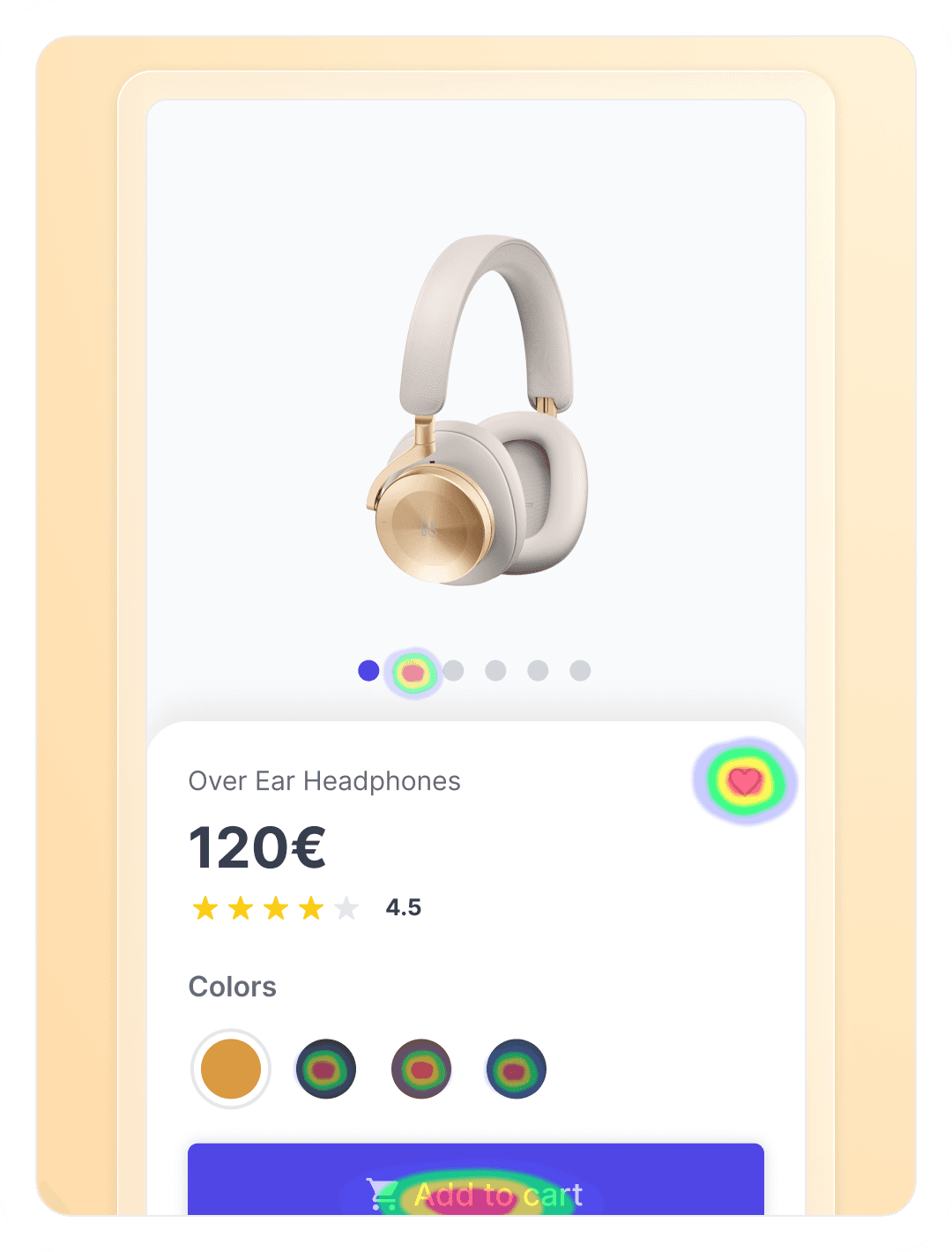
Find problems early before they turn up in your live product. Validate flows, navigation, and layouts at an early stage so to spend less time reworking and more time delivering.
Reduce rework by finding usability issues
Compare designs and make the right decisions
Align designers, product managers, and stakeholders
Catch problems early
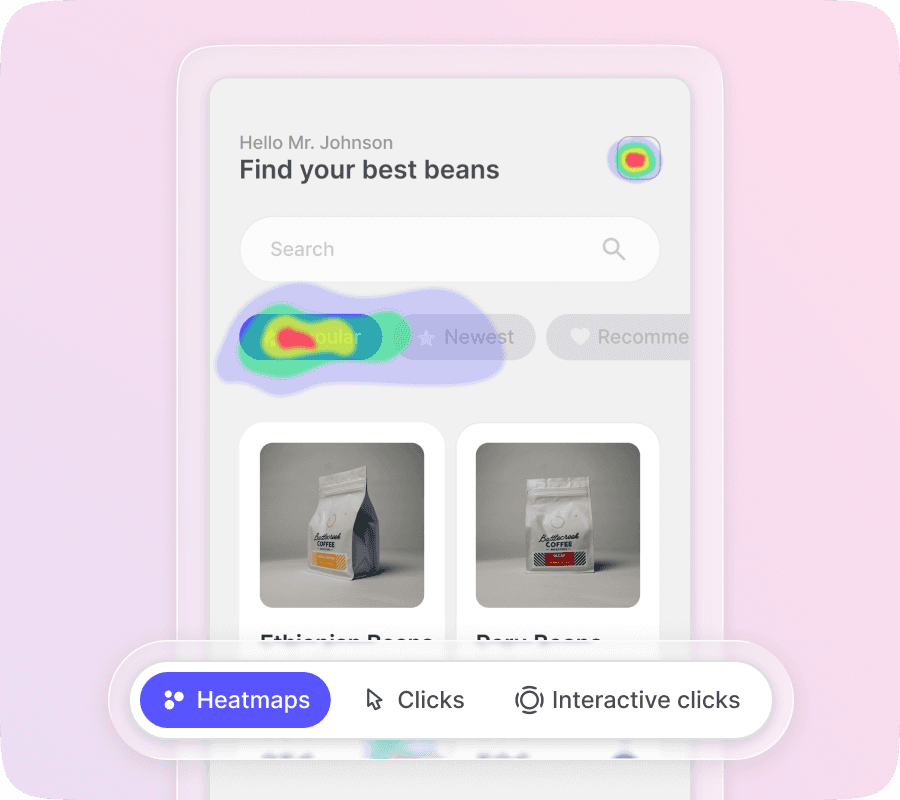
Find problems early before they turn up in your live product. Validate flows, navigation, and layouts at an early stage so to spend less time reworking and more time delivering.
Reduce rework by finding usability issues
Compare designs and make the right decisions
Align designers, product managers, and stakeholders
Support every design step
Useberry fits naturally into your design lifecycle so you can keep learning as your prototypes evolve.
Test core flows and information architecture
Check labels, hierarchy, forms, and clarity
Refine microcopy, interactions, and layouts

Support every design step
Useberry fits naturally into your design lifecycle so you can keep learning as your prototypes evolve.
Test core flows and information architecture
Check labels, hierarchy, forms, and clarity
Refine microcopy, interactions, and layouts
Import designs with ease
Useberry works with the design tools you already use, so turning a prototype into a test is simple. Connect once, link and load your prototype, to collect feedback without disrupting your flow.
Integrated with Figma, ProtoPie, Sketch and more
Keep prototypes in sync without any reuploads
Build in your design tool, test in Useberry, iterate faster
Import designs with ease
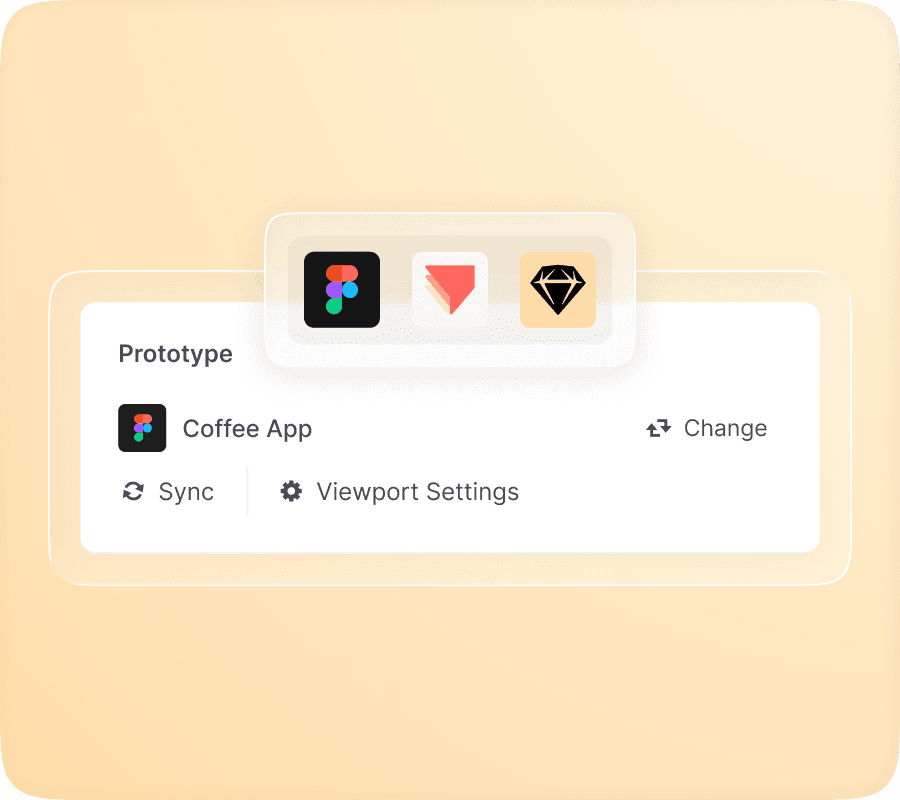
Useberry works with the design tools you already use, so turning a prototype into a test is simple. Connect once, link and load your prototype, to collect feedback without disrupting your flow.
Integrated with Figma, ProtoPie, Sketch and more
Keep prototypes in sync without any reuploads
Build in your design tool, test in Useberry, iterate faster
Workspace library
Keep every prototype, website, and creative organized
Useberry’s workspace library keeps your team’s prototypes, websites, and images in a single, searchable place. Reuse the correct assets across studies to keep projects consistent, and save time every time you need your assets again for a new test.
Organize prototypes, websites, and images per workspace
Search, sort, and quickly reuse items across new studies
Simplify your process with an organized asset hub

Workspace library
Keep every prototype, website, and creative organized
Useberry’s workspace library keeps your team’s prototypes, websites, and images in a single, searchable place. Reuse the correct assets across studies to keep projects consistent, and save time every time you need your assets again for a new test.
Organize prototypes, websites, and images per workspace
Search, sort, and quickly reuse items across new studies
Simplify your process with an organized asset hub
Choose the right method
Variety of methods to test your prototype
Choose the method that fits your goal, whether you need to validate a flow, compare design options, check first impressions, or see if users know where to click.

Single Task
Ask participants to complete a specific action on your website and measure success, completion rates, and friction points.

Open Analytics
Let participants navigate more freely while you observe the paths they take, where they hesitate, and self-report when they believe the task is complete.

First Click
See where visitors click first to complete a task. Test whether your navigation, CTAs, and page layout guide them in the right direction.

5 Second Test
Test what people understand, remember, and notice after a quick glance at your page, hero section, or key campaign message.

Preference Test
Compare design variations, layouts, copy, or visual directions to understand which option users prefer and why.

A/B Testing
Use randomization to show participants different versions of a page, flow, CTA, or message, then compare results to see which variation performs better.
Single Task
Ask participants to complete a specific action on your website and measure success, completion rates, and friction points.
Open Analytics
Let participants navigate more freely while you observe the paths they take, where they hesitate, and self-report when believe the task is complete.
First Click
See where visitors click first to complete a task. Test whether your navigation, CTAs, and page layout guide them in the right direction.
5 Second Test
Test what people understand, remember, and notice after a quick glance at your page, hero section, or key campaign message.
Preference Test
Compare design variations, layouts, copy, or visual directions to understand which option users prefer and why.
A/B Testing
Use randomization to show participants different versions of a page, flow, CTA, or message, then compare results to see which variation performs better.
Start testing prototypes
Connect your designs, launch a study, and see how people experience your product before it ships.
No credit card required
Start testing prototypes
Connect your designs, launch a study, and see how people experience your product before it ships.
No credit card required
Start testing prototypes
Connect your designs, launch a study, and see how people experience your product before it ships.
No credit card required